Text to speech reads each tip aloud on stream. The tip alert shows on screen as usual, an alert sound plays, and then the tip is read in the voice you chose.
Speech settings apply to your whole account, not to one scene. A tip is announced on every scene you have open, so they all use the same voice. Only the volume is set for each scene.
Before you start
- Build a scene that includes the Tip alert widget. Choose a studio scene type explains the options.
- Add that scene to OBS as a browser source. Connect WeTip to OBS walks through it.
- If the speech panel says Spoken tips are not switched on yet, WeTip has no voice to read with yet. Connect your own ElevenLabs account under Creator workspace → Settings → Integration, as described below.
Turn on spoken tips
- Open Creator workspace → Studio and open the scene with your tip alert.
- Select the Tip alert widget to open its Properties.
- Under Read tips aloud, turn on Read tips aloud.
- Choose a Language. Every tip is translated into this language before it is read. Pick Read as written to read tips in the language the supporter used.
- Choose a Voice. Once you pick a language, you can browse voices made for it. Narrow the list with Voice category, and press play on a voice to hear it.
- Select Play a sample to hear your choices. The sample uses what is on screen, even if you have not saved it yet.
- Publish the scene. Your speech settings are saved only when you publish.
Set the alert sound and volume
In the same Properties panel:
- Alert sound plays when a tip appears, before it is read. Pick one of the sounds, keep the theme's sound, or choose No sound.
- Alert volume sets how loud both the alert sound and the spoken tip play on this scene.
Browsers block sound until you allow it. If you preview in a browser tab, select Enable sound first. OBS plays sound without asking.
Choose what gets read
Open More options to fine-tune each read:
- Model trades speed for quality. The Flash models cost less and read each tip sooner. Multilingual v2 sounds better but takes longer. Eleven v3 reads the most languages but can delay each alert by several seconds. If a model cannot read your chosen language, the panel tells you. Pick a different model or language.
- Read the supporter's name says who sent the tip. Anonymous tips are never named, whatever this setting says.
- Read the amount says how much was tipped before reading the message.
- Minimum tip to read aloud skips smaller tips. They still show an alert but are not read. Set it to 0 to read every tip.
- Never read these aloud takes one word or phrase per line. A tip containing any of them still shows its alert but is not read.
Long messages are cut short, so one tip cannot take over the stream.
Use your own ElevenLabs account
Connect your own ElevenLabs account to use your own credits, plan, and cloned voices. Characters read with your key do not count against your WeTip allowance.
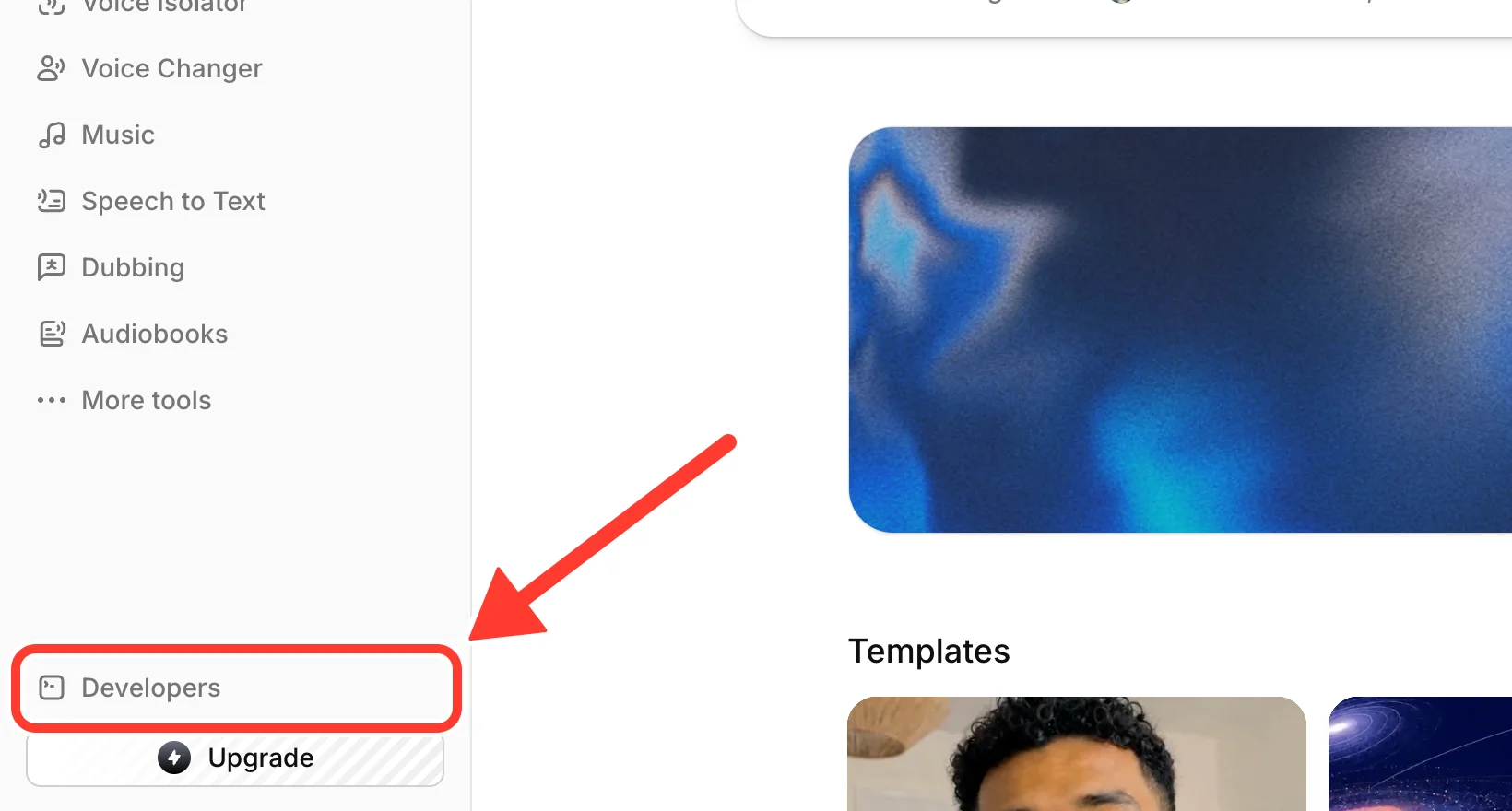
Step 1: Open Developers in ElevenLabs
Sign in at elevenlabs.io. In the sidebar, select Developers.
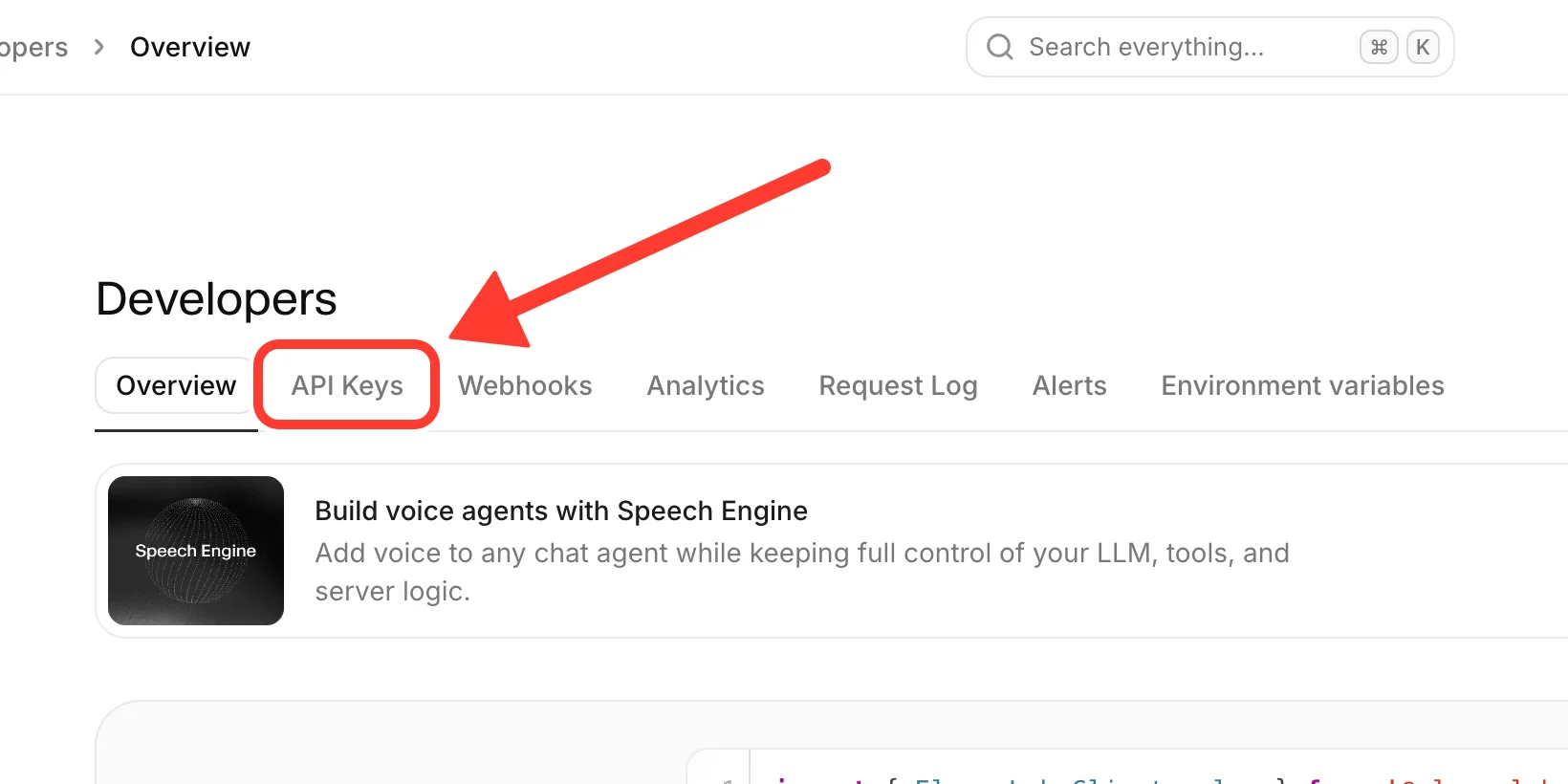
Step 2: Go to API Keys
At the top of the Developers page, select the API Keys tab.
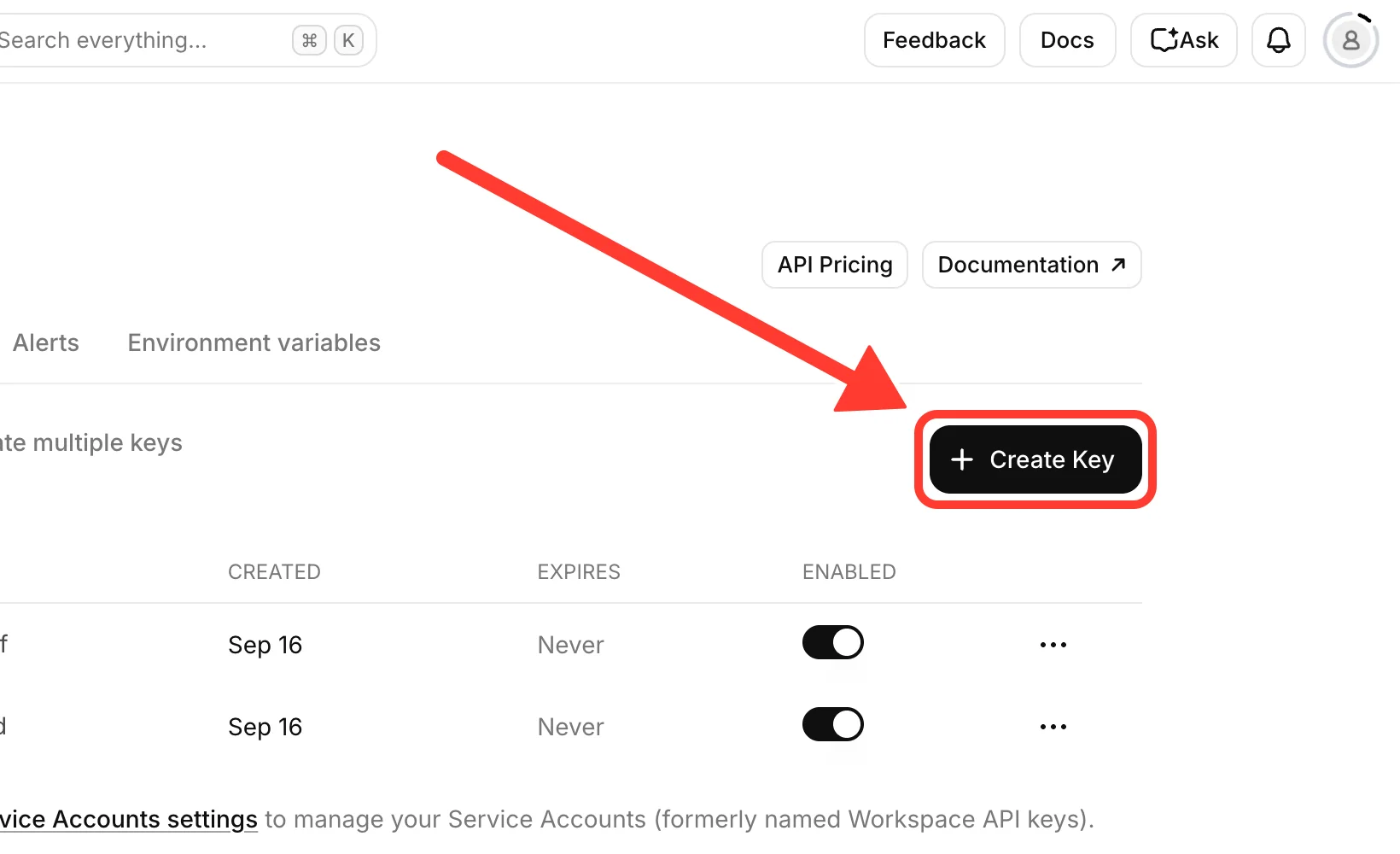
Step 3: Create a new key
Select Create Key. Make a new key just for WeTip, even if you already have other keys. That way you can turn it off later without breaking anything else.
Step 4: Set permissions and create the key
In the Create API Key panel, give the key a name you will recognise, such as WeTip. Then set its permissions.
WeTip lists three of these under Key permissions needed in the Your own ElevenLabs account panel, using the same names as the ElevenLabs form.
Two of them are required. WeTip refuses a key without them:
- Text to Speech: set to Access. WeTip uses it to turn each tip into speech.
- Voices (Read): set to Access. WeTip uses it to list the voices on your account, browse the voice library, and check that the voice you picked still exists.
The third is recommended. WeTip accepts a key without it:
- Voices (Write): set to Access. WeTip uses it only to add a voice you pick from the ElevenLabs voice library to your account. Without it, pick from the voices already on your account.
Also turn on this one, which WeTip does not list:
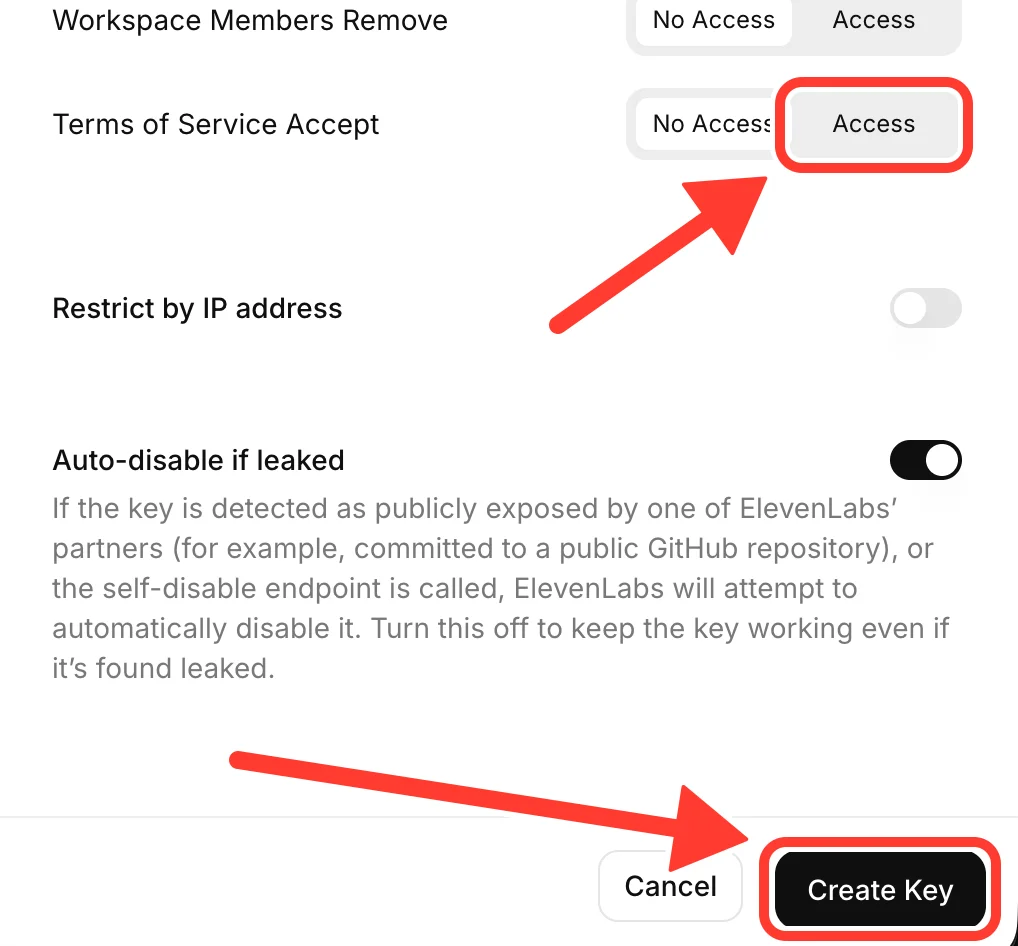
- Terms of Service Accept: set to Access. Without it, the key does not work for reading tips aloud. It is the last permission in the list, just above Restrict by IP address.
One more is optional and not listed in WeTip:
- User (Read): set to Access if you want WeTip to show your ElevenLabs plan and characters used. Without it, those details show as a dash.
WeTip uses nothing else, so leave every other permission set to No Access. That includes Webhooks, Service Accounts, and every Workspace permission. The fewer permissions the key has, the less anyone could do with it if it leaked.
Leave Restrict by IP address off. Tips are read from WeTip's servers, not your computer, so a key limited to your own IP address will not work.
Before you create the key, check that Terms of Service Accept is set to Access. Then scroll to the bottom of the panel and select Create Key.
Step 5: Copy the key
ElevenLabs shows the new key once. Copy it straight away. If you lose it, delete the key and create a new one.
Treat the key like a password. Anyone who has it can spend your ElevenLabs credits.
Step 6: Connect the key to WeTip
- In WeTip, open Creator workspace → Settings → Integration.
- In the Your own ElevenLabs account panel, paste the key into API key.
- Select Connect account.
If the key is missing Text to Speech or Voices (Read), WeTip does not connect it and says which permission is missing. Edit the key in ElevenLabs to allow it, then connect it again.
If the key connects without Voices (Write), the panel lists it under Key permissions needed. Add it to the key in ElevenLabs, then select Refresh.
WeTip checks the key with ElevenLabs before saving it. After that, the key cannot be shown again. The panel shows the key's status, and Refresh reloads your plan and usage. Select Disconnect to remove the key.
Library voices need a paid ElevenLabs plan. On a free plan, pick from the voices already on your ElevenLabs account.
If your key stops working, tips go silent. WeTip does not switch to its own voice provider behind your back.
Skip a read during a stream
If a read should not play in full, select Skip this read in the tip alert's properties. It stops the current tip being read on every scene you have open. The alert stays on screen.
Fix spoken tips that stay silent
Check these in order:
- Read tips aloud is on, and the scene has been published since you changed it.
- The tip meets your Minimum tip to read aloud, and it contains none of your Never read these aloud terms.
- Alert volume is above 0, and the OBS browser source is not muted in the OBS audio mixer.
- In a browser tab, you have selected Enable sound.
If you use your own ElevenLabs account, the status on the Integration page names the problem:
- That key was rejected: the key was deleted, turned off, or lost a required permission in ElevenLabs. Check that the key is still enabled and allows Text to Speech, Voices (Read), and Terms of Service Accept, then select Refresh. If you deleted the key, disconnect, create a new key, and connect that one.
- That account is out of characters: add credits or wait for your ElevenLabs plan to renew.
- ElevenLabs could not be reached: this is usually temporary. Select Refresh after a moment.
- Your ElevenLabs key could not list the voices on that account: add Voices (Read) to the key in ElevenLabs, then select Refresh.
Related
Quick check