YouTube has no subscriber alerts to grant, so WeTip does not connect it with a sign-in. Instead you supply a Google API key from your own Cloud project, and WeTip uses it to read your channel's public subscriber count and draw it on a scene.
The key stays yours. It is stored encrypted, never shown again after you save it, and only ever used to read the channel you named.
Create a Google API key
You only need to do this once, in the Google Cloud console. It is free. The YouTube panel on the Integration page links back to this guide.
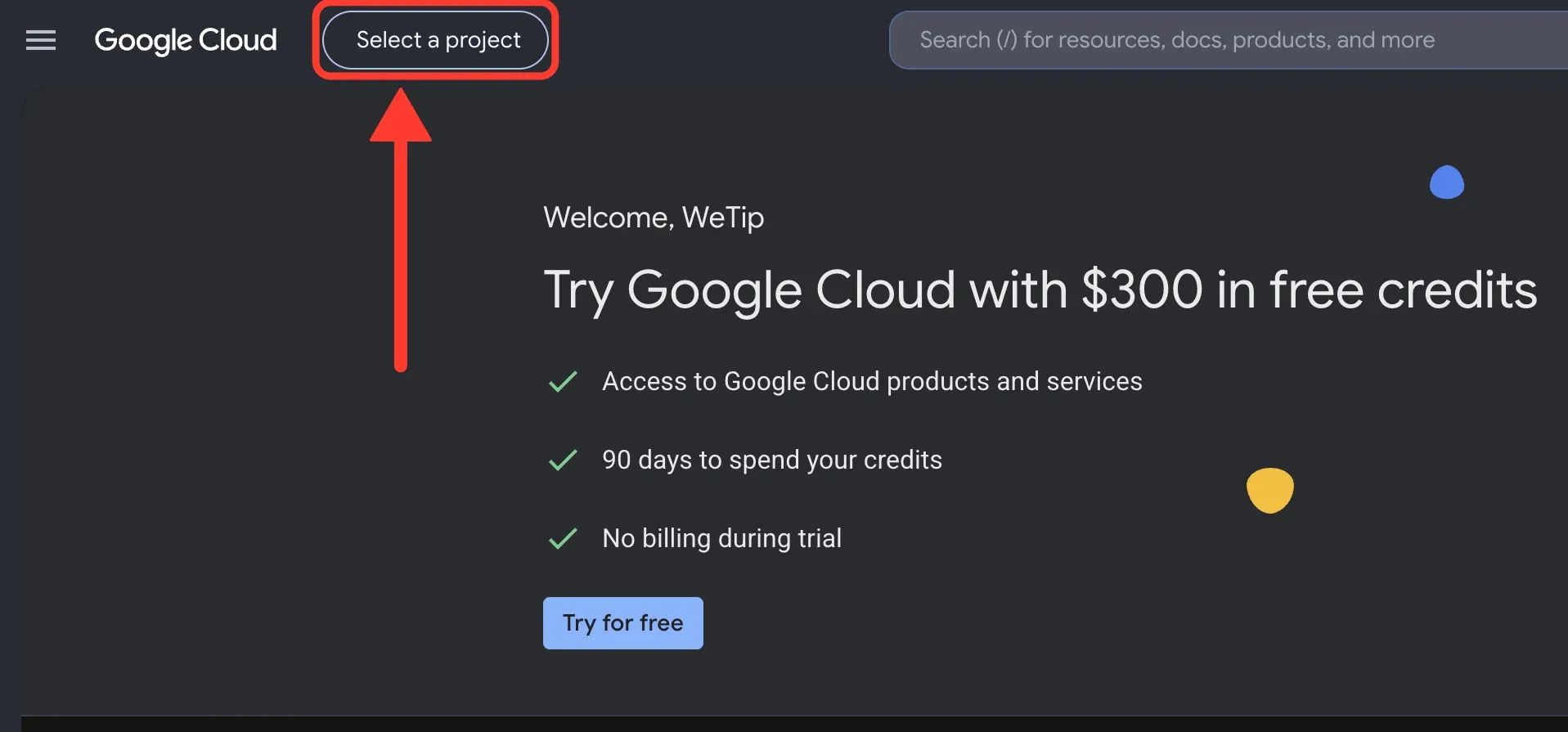
Step 1: Open the project picker
Sign in to the Google Cloud console with your Google account. At the top of the page, select Select a project.
If you already have a project you want to use, pick it here and skip to step 4.
Step 2: Start a new project
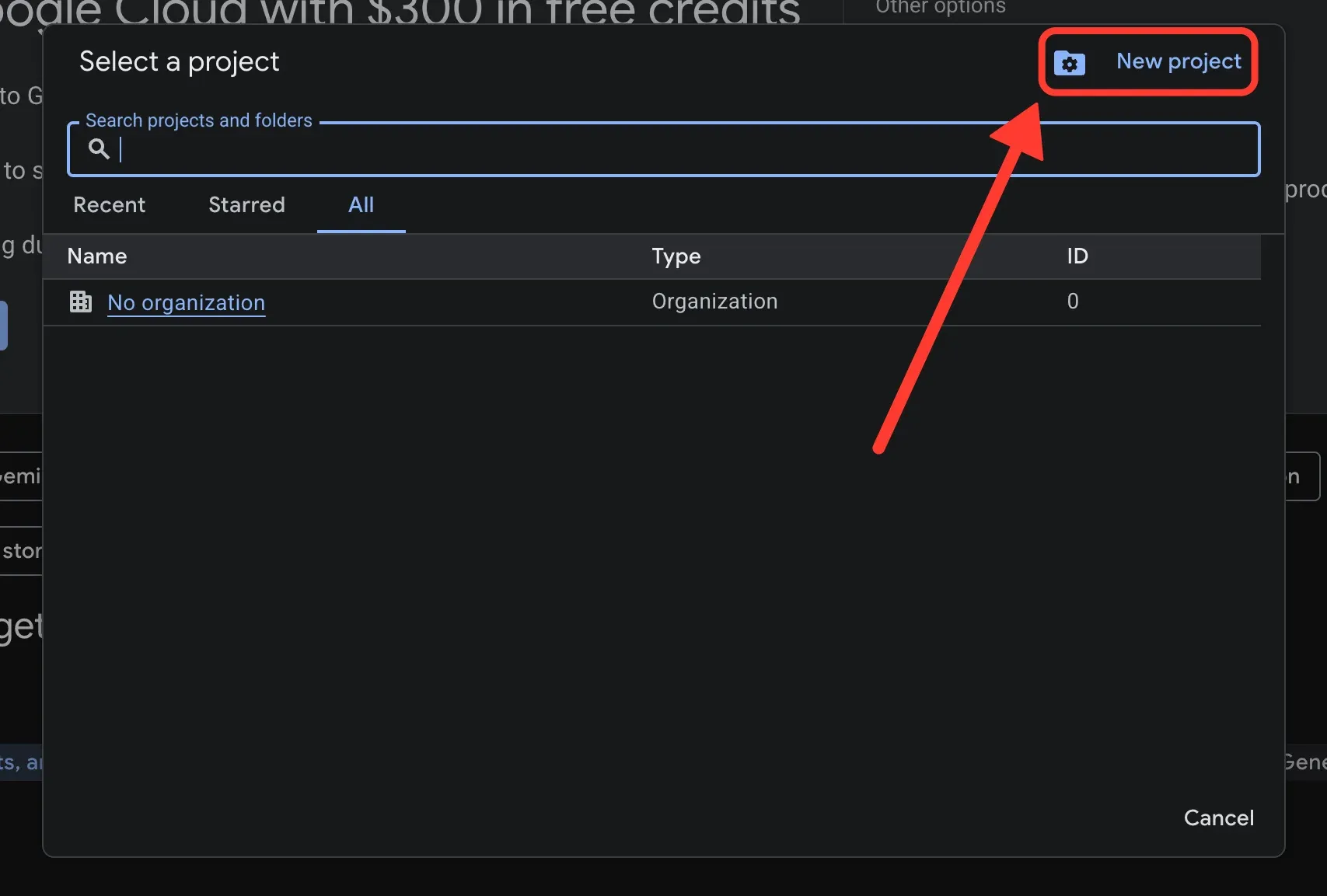
In the Select a project window, select New project.
Step 3: Name the project and create it
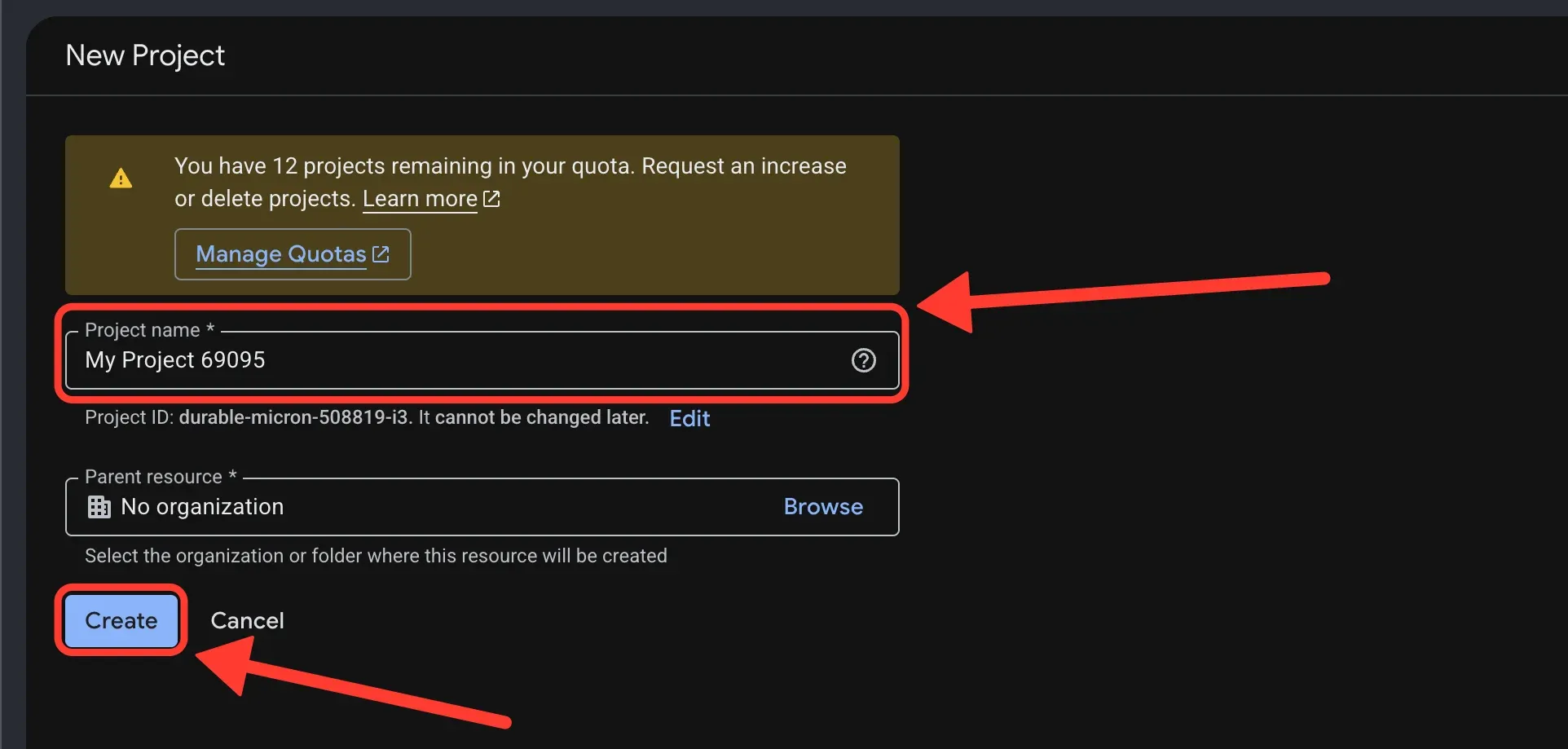
Give the project a name you will recognise, such as WeTip. Leave Parent resource as it is, then select Create.
Creating the project takes a few seconds. When it is ready, make sure it is the project shown at the top of the page. If it is not, open the project picker and select it.
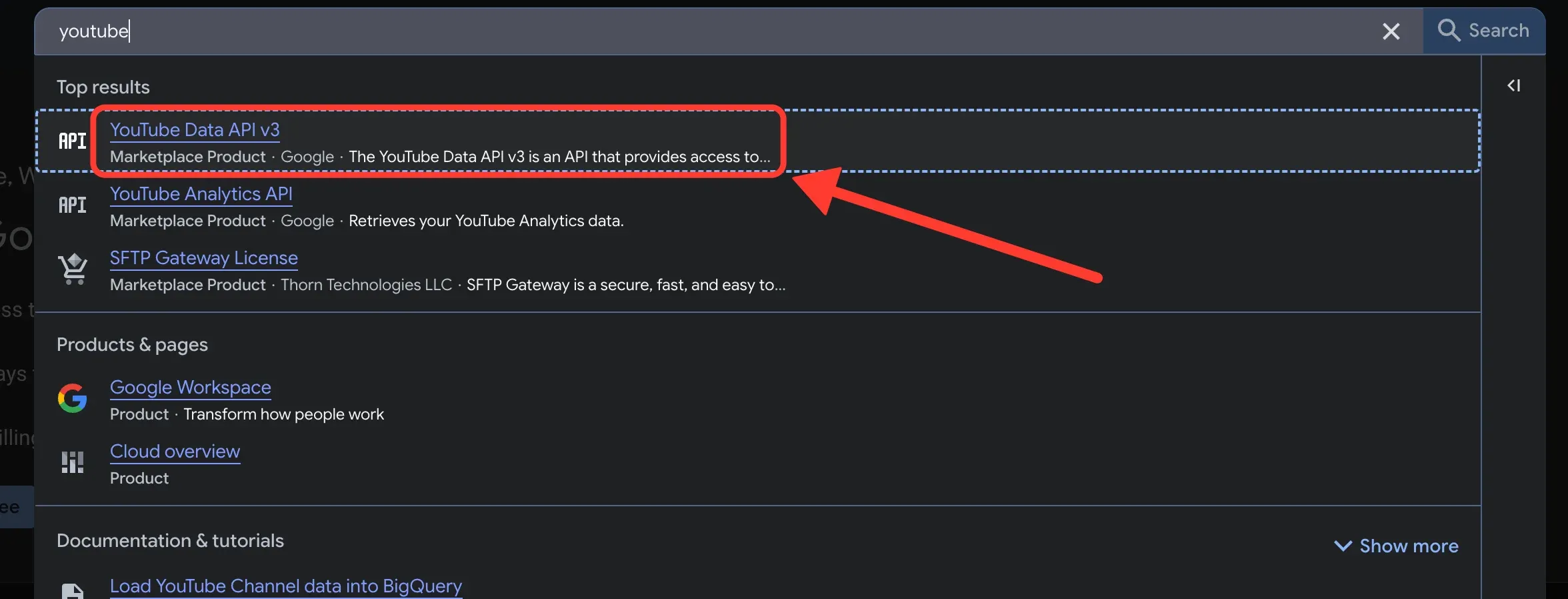
Step 4: Search for the YouTube Data API
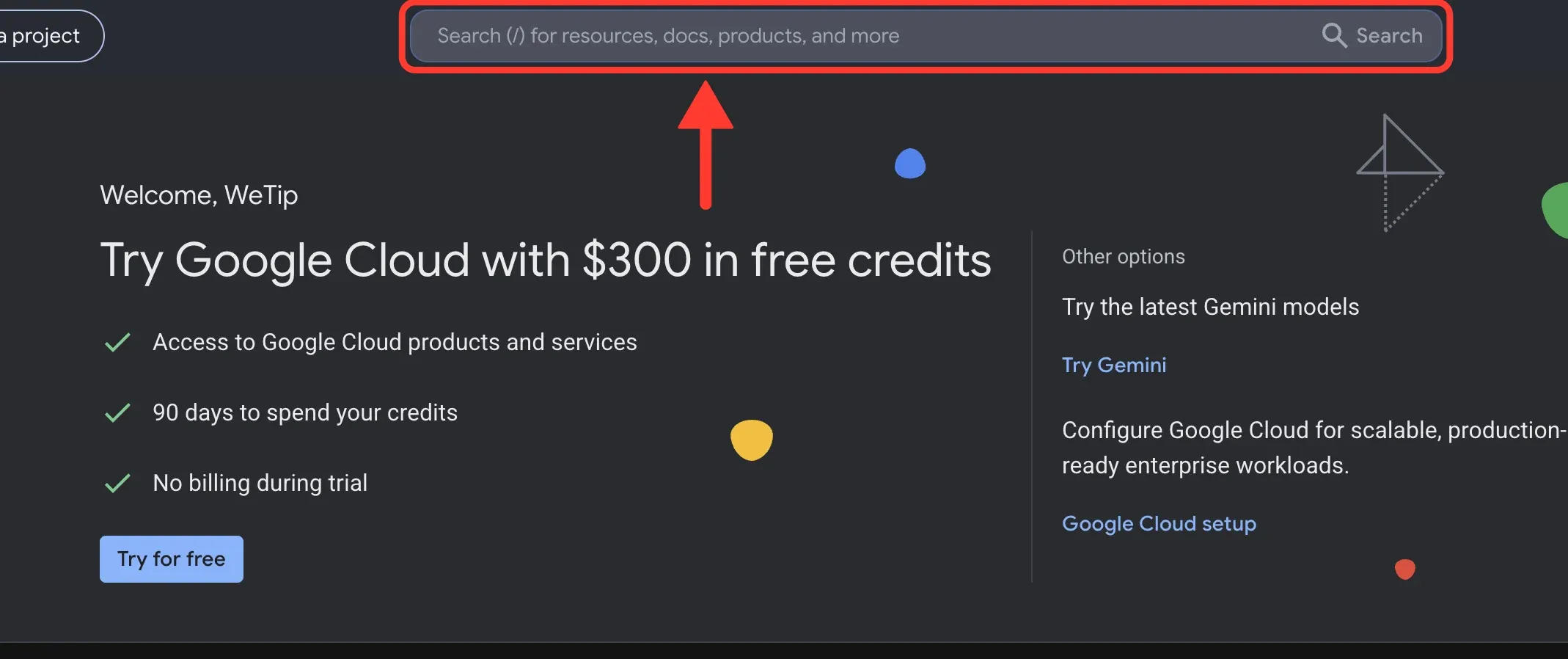
Select the search bar at the top of the console and type YouTube Data API v3.
Step 5: Open YouTube Data API v3
In the results, select YouTube Data API v3. Make sure you pick this one, not YouTube Analytics API or YouTube Reporting API.
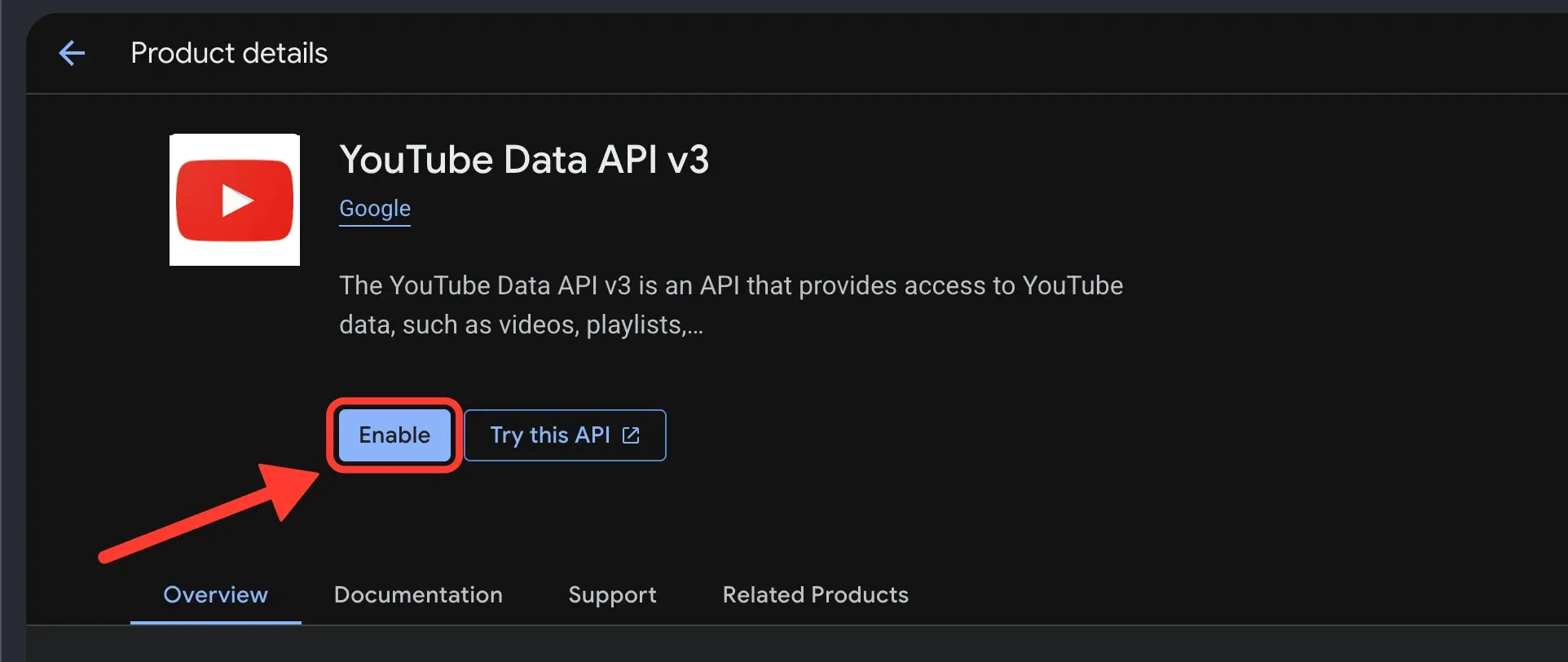
Step 6: Enable the API
Select Enable. Once the API is on, the page changes to API/Service Details and the status reads Enabled.
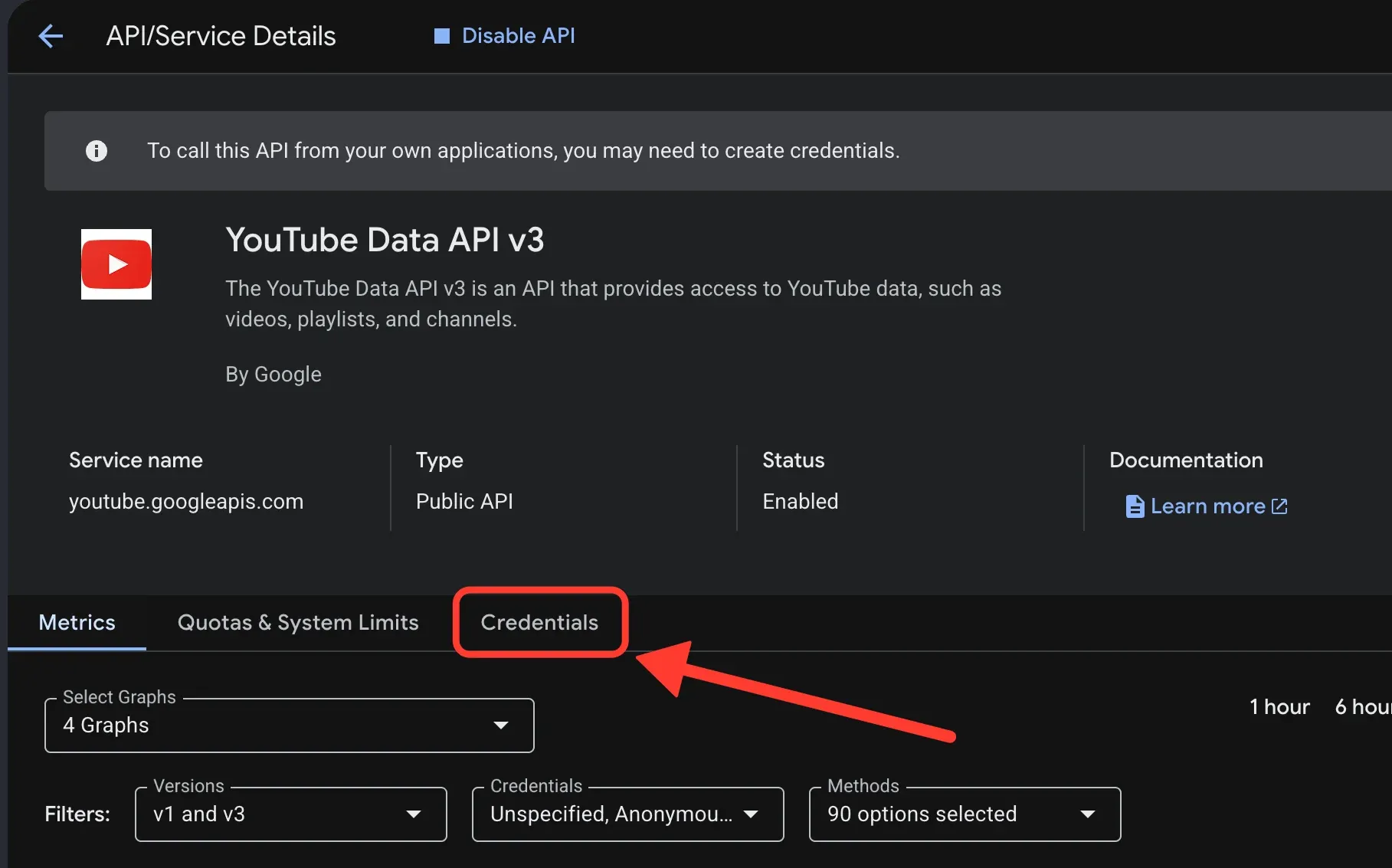
Step 7: Open Credentials
On the API/Service Details page, select the Credentials tab.
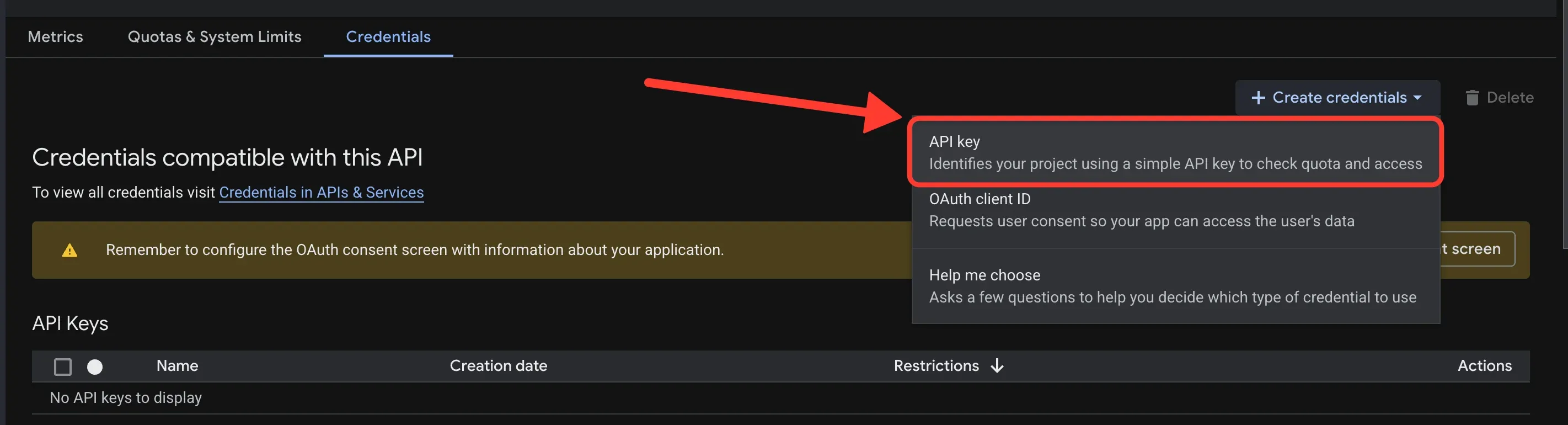
Step 8: Create an API key
Select Create credentials, then choose API key. Do not choose OAuth client ID. WeTip does not use it.
Step 9: Limit the key to YouTube Data API v3
Give the key a name, such as WeTip. Then open Select API restrictions.
Type youtube in the filter, tick YouTube Data API v3, and select OK. Tick only this API. The key then cannot be used for anything else, even if it leaks.
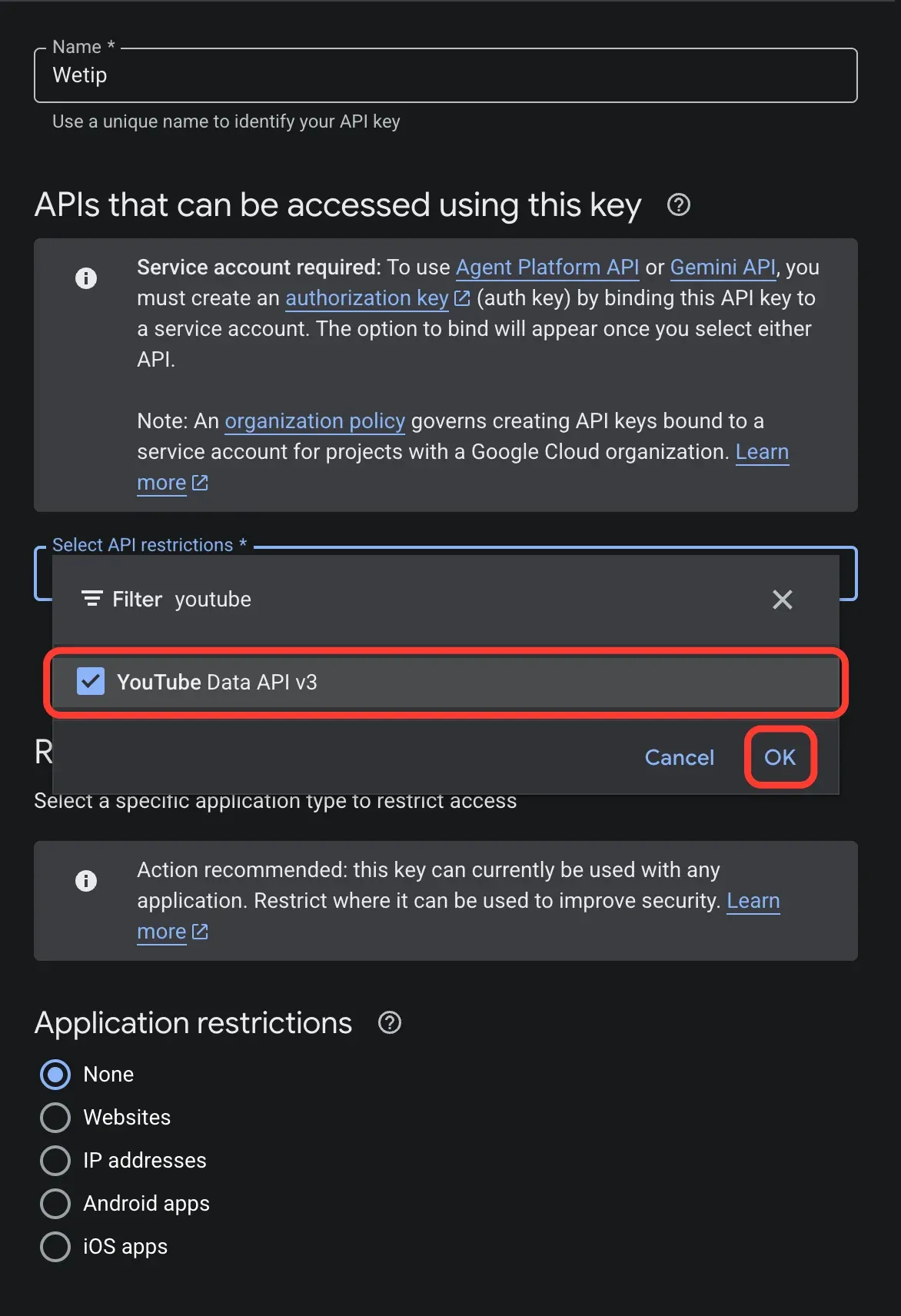
If YouTube Data API v3 is not in the list, the API is not enabled on this project yet. Go back to step 4.
Step 10: Leave application restrictions as None and create the key
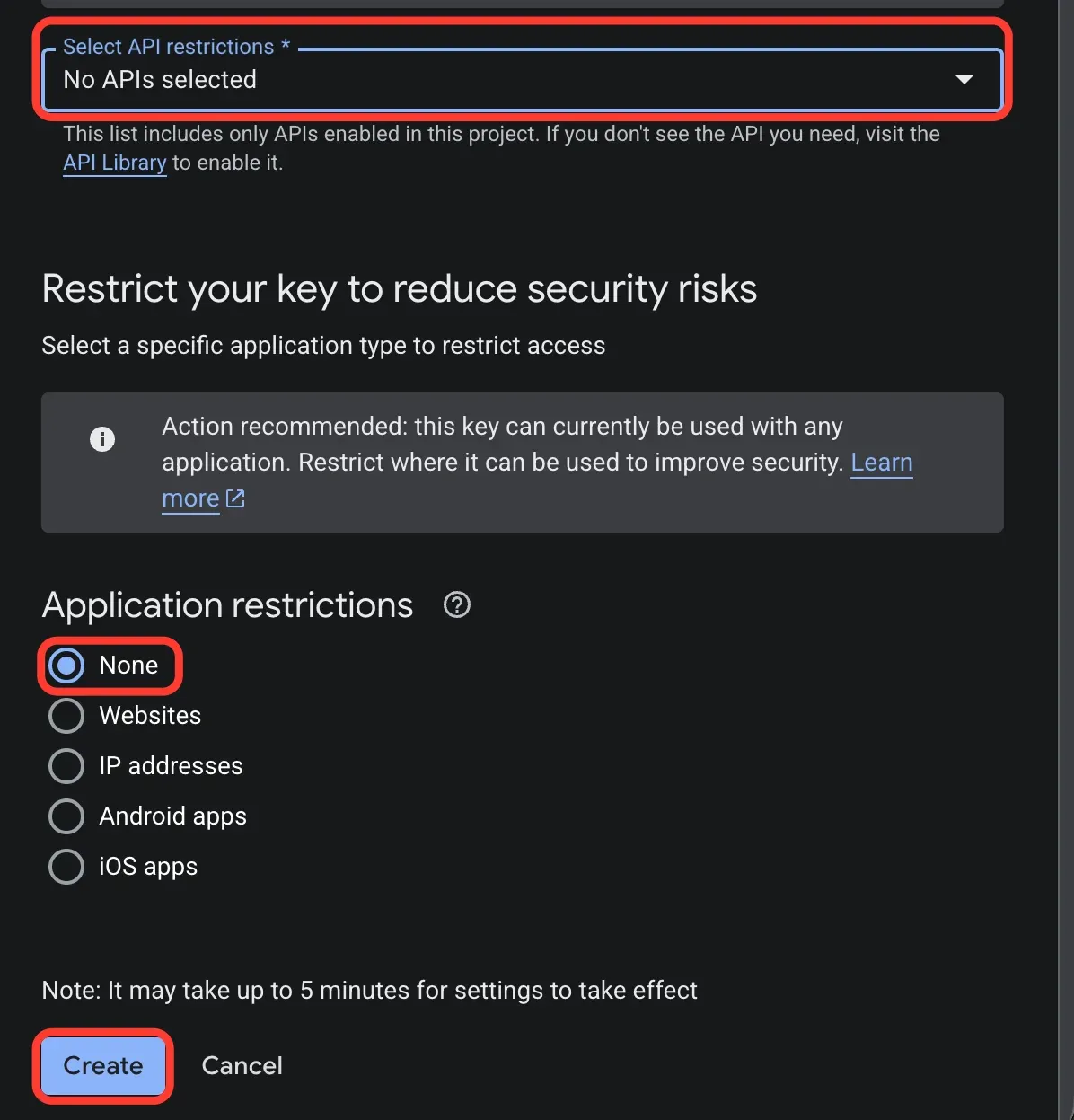
Under Application restrictions, leave None selected, then select Create.
This setting matters. A key limited to Websites or IP addresses will not include WeTip's servers, so every count fails with a restriction error. Google suggests restricting the key, but for WeTip the API restriction from step 9 is the one to use.
Google may take up to 5 minutes to apply the settings, so a brand-new key can fail its first check. Wait a few minutes and check it again.
Step 11: Copy the key
When API key created appears, select the copy button next to Your API key.
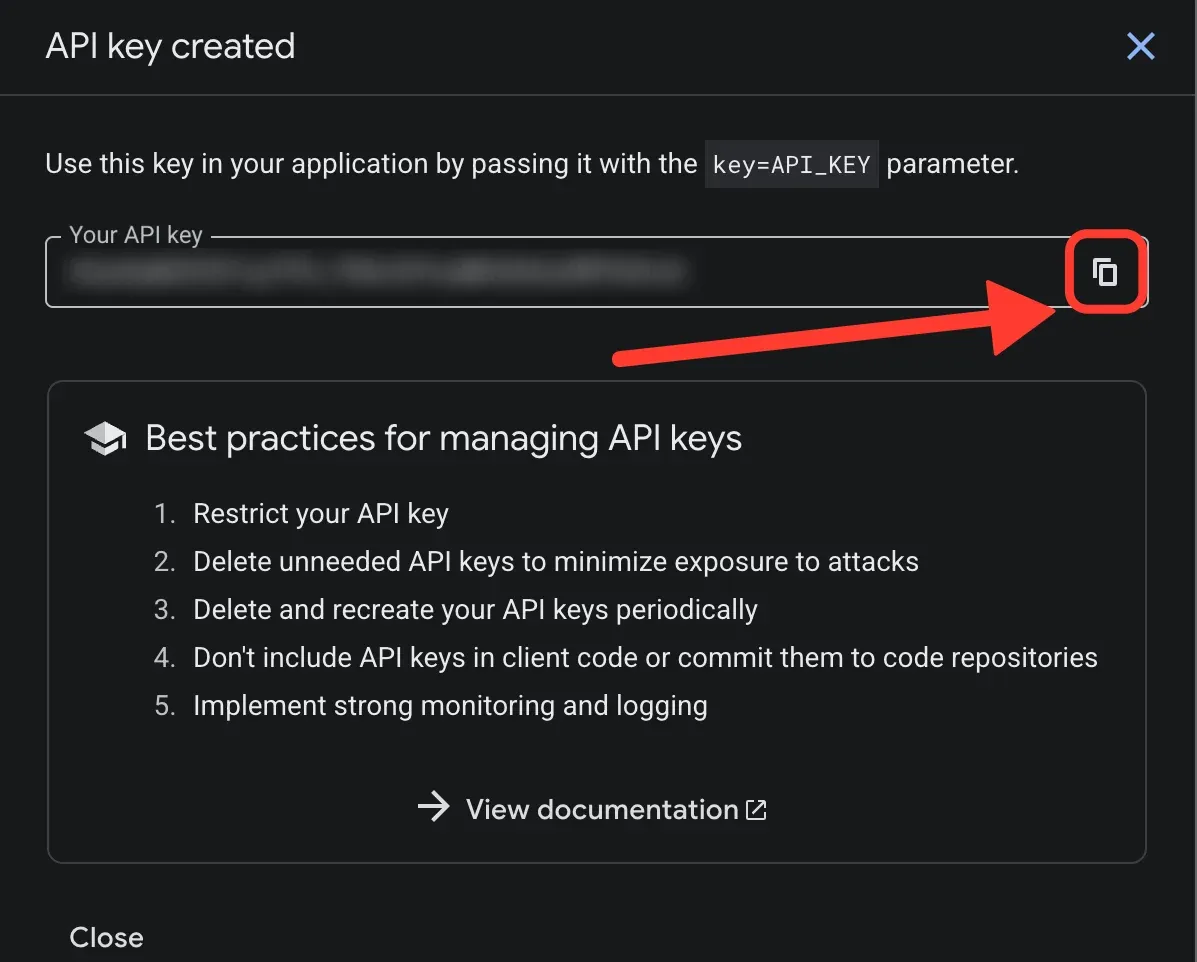
Treat the key like a password. Do not post it or share it in a screenshot. If it gets out, delete the key in Google Cloud and create a new one. You can find it again later under APIs & Services → Credentials.
Connect your channel
- Open Creator workspace → Settings → Integration.
- In the YouTube panel, choose to connect.
- Enter your channel as a handle (
@yourchannel) or ayoutube.com/channel/UC…link. - Paste the API key.
- Select Check key. WeTip resolves the channel and shows the name and subscriber count it found.
- Select Save to start counting.
The panel then shows the connected channel, its subscriber count, when it was last checked, the last four characters of the key, and the daily quota used.
To change the key later, use Replace key in the same panel.
Add the widget to a scene
A connection on its own draws nothing. Put the count on a scene:
- Open Creator workspace → Studio and either use the YouTube subscribers template or open an existing scene.
- Make the YouTube subscribers widget visible.
- Position and scale it on the canvas.
- Set its options under Properties, then save the scene.
Two options shape the reading:
- Subscriber goal is optional. With a goal set, the widget reads count against goal; leave it empty to show the count alone. The goal accepts any whole number from 1 to 1,000,000,000.
- Shorten the count shows 1.2k and 1.2M instead of 1,200 and 1,234,567. The goal is shortened with it.
You can also change the display label, so the widget can read “Subscribers”, “Road to 10k”, or anything else in your words.
How often the count refreshes
The count refreshes about once a minute while a scene showing it is open. WeTip only polls channels whose count is actually being displayed, which is what keeps the quota affordable.
Each check costs one quota unit against your key. A default Google project allows 10,000 units a day, and a count polled every minute for a full day spends about 1,440 of them. The quota resets at midnight Pacific time.
Because Google reports no remaining balance, the quota figure in the panel is only what WeTip has spent against the key today. Anything your other apps spend on the same key is not counted there.
Why the count is not exact
Above 1,000 subscribers YouTube stops publishing an exact number. It reports the count rounded down to three significant digits, and that rounded figure is all any app can read — WeTip included.
So a channel with 1,560 subscribers and a channel with 1,569 both report 1,560, and the widget reads 1.56k either way. The number only moves when the channel reaches 1,570. Bigger channels round in bigger steps: past 100,000 the step is 1,000, and past 1,000,000 it is 10,000.
Two things follow from that:
- The count will sit still between steps, sometimes for days. Nothing is wrong with your key or the refresh — there is simply no new number to read.
- Shorten the count changes nothing about the precision. With it off the widget writes 1,560 in full, which is the same rounded figure.
Below 1,000 subscribers YouTube still reports the exact number, so a smaller channel's count moves with every subscriber.
Fix a key that stops counting
The panel names the reason, and the status badge tells you whether it needs you at all.
- Waiting for quota reset — the key's daily quota is spent. Counting resumes on its own after the reset. Nothing to fix.
- Google rejected this API key — check it was copied whole and has not been deleted, then save it again.
- YouTube Data API v3 is not enabled — enable the API on that key's Cloud project, then check the key again.
- The key is restricted — set its application restriction to None, then check the key again.
- The channel no longer resolves — save the channel handle or link again.
A key that needs your attention stays out of the poll until you save a working one. Only a spent quota is retried on a timer.
Counts a channel hides
If your channel hides its subscriber count on YouTube, the API returns nothing to display and the panel reads Hidden by the channel. Make the count public in YouTube Studio if you want it on stream. A channel that has simply not been polled yet reads Not counted yet and resolves on the next refresh.
What this connection does not do
The YouTube connection is a count, not an alert. It cannot announce individual new subscribers, because YouTube does not publish those events. For live subscription moments, connect Twitch or Kick — see Connect Twitch and Kick for subscriber alerts.
Quick check